In this article
Changed your mind about a song you used in your posted? Got your Reel's song muted?
Yes, you can change the audio on a published Instagram post without deleting it.
That means the soundtrack you chose at publish time no longer has to be permanent. You can swap a song that no longer fits, replace music that has become unavailable, or refresh an evergreen post while keeping the engagement it has already earned.
There is one important distinction: changing music on a regular feed post or carousel is not the same as replacing unavailable audio on a Reel. We’ll walk through both processes below.
This guide walks through both: how to use Replace Audio on feed posts and carousels, and how to fix a Reel that shows "Audio unavailable."
Can you change the audio on an Instagram post after posting?
Yes. As of July 2026, Instagram supports changing the audio on published feed posts and carousels through the Replace Audio tool. This is a genuine update — a lot of existing articles and forum answers still say this isn't possible, because it wasn't until now. If you're seeing older advice telling you to delete and repost, it's outdated.
Replace Audio is an editing tool Instagram added to feed posts (both single-image and Instagram carousels) that lets you change the soundtrack on content you've already published, without deleting the original post. Instagram announced it via its official creators account the week of July 20, 2026, framing it as one of the most-requested creator tools of the year.
Before this update, if you wanted to update a post's music, (say, because a copyright issue muted it or a trending song moved on), your only option was to delete the post and repost it, wiping out every like, comment, and share along the way. Replace Audio removes that trade-off.
Reels work a little differently (more on that below), but the short version is: for feed posts and carousels, yes, you can change the song after publishing, and you keep your engagement when you do.
How to change audio on an Instagram feed post (image or carousel)
If you want to replace the song in a image or carousel you already posted on your Instagram profile, you can use the Replace Audio feature to do so.
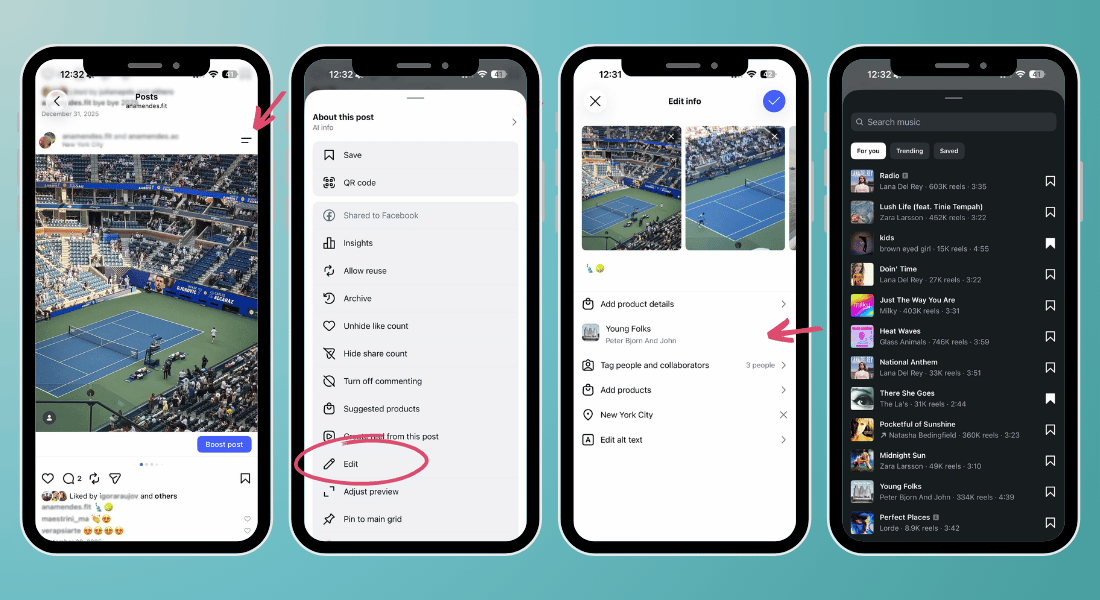
Here’s the full walkthrough for swapping the music on a feed post you’ve already shared:
Step 1: Open Instagram on your phone
Go to your profile and open the published feed post whose music you want to change.
Step 2: Open the post menu
Tap the menu icon in the top-right corner of the post. Depending on your app version, it may appear as two lines or three dots.
Step 3: Edit your existing post
Scroll through the available post actions if Edit is not immediately visible.
Step 4: Choose Replace Audio
This opens Instagram’s music library.
Find a new song or sound. Search by track, artist, mood, or browse the music Instagram makes available to your account. Select the track you want, and confirm. Instagram applies the new audio right away.
Step 5: Save your changes
Tap Done to confirm and return to the published post. Play it once to verify the new audio is live and synchronized the way you intended.
You will see that your likes, comments, shares, and reach stay exactly as they were, only the audio changes.
Worth knowing: you can only pick audio from Instagram's own library - you can't upload an outside MP3 or attach an external file to a live post.
This is especially handy for carousels tied to a trending sound. If you posted a carousel with music that's since fallen out of favor (or got attached to a different, unrelated trend), you can update it to match what's current without resetting the post to zero engagement.
How to change audio on an Instagram Reel
A Reel may lose its song after publication if music rights or licensing availability change. When that happens, the Reel can remain visible but play without the original track. When that happens, you'll see an "Audio unavailable" notice on the Reel instead of your original sound.
Reels have their own, older audio-replacement flow and it solves a different problem. Instagram works with music rights holders to license the tracks in its library, and if those licensing terms change, Instagram may mute the audio on Reels that used that track. But the good news is that Instagram lets you replace the unavailable audio with another track from its music library.
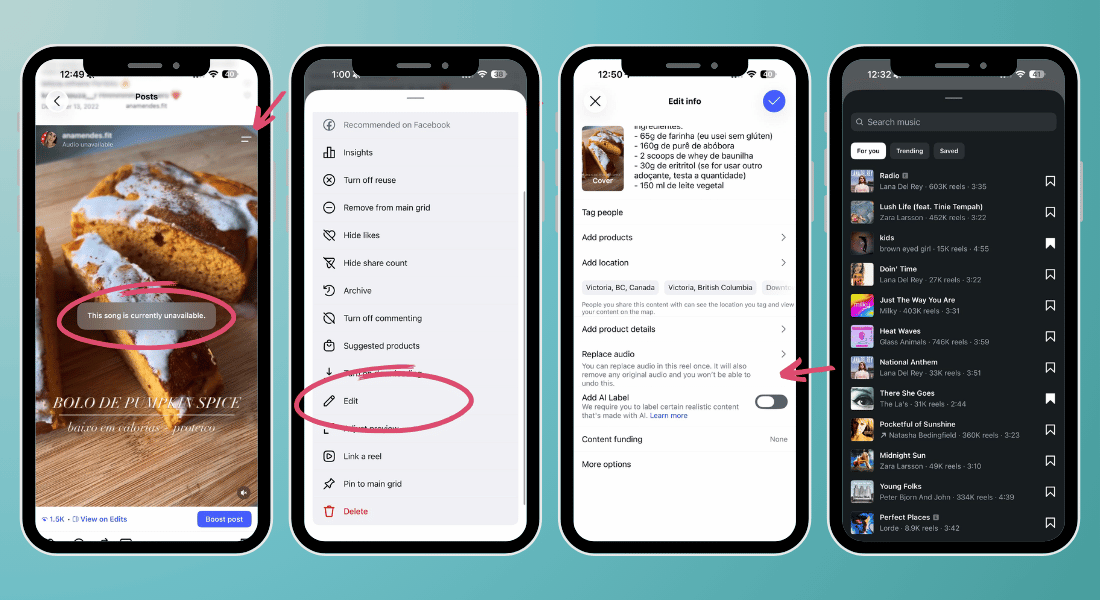
Here’s how to replace unavailable audio after Instagram has muted your Reel:
Step 1: Open the affected Reel
Find the Reel showing the "Audio unavailable" notice on your profile.
Step 2: Edit Reel
Open the menu in the top-right corner of the Reel and tap "Edit"
Step 3: Tap "Replace audio"
In the Edit screen, choose the "Replace audio" option and Instagram's audio library will open.
Step 4: Choose a new track and confirm
Pick a new song from Instagram's audio library, select the portion of the track you want to use, then tap Done.
Worth knowing: per Instagram's Help Center, this Reels fix has historically only worked once per Reel, and only with tracks from Instagram's own library. If your Reel's audio is muted for a reason other than licensing (a glitch, a corrupted upload), updating the Instagram app and clearing its cache before trying again can also help.
Why did Instagram remove or mute my Reel’s audio?
A song can become unavailable even if it worked when you originally published the Reel. Music licenses and rights-holder permissions can change, and availability may differ by country or account type. Instagram may then mute the affected track while leaving the visual content online.
If several Reels suddenly lose sound at once, first rule out a temporary app issue: update Instagram, restart the app, and test from another device or account. If one Reel clearly displays an audio-unavailable message, use the replacement flow above.
Replace Audio vs. fixing a muted Reel — what's the difference?
Both tools live inside Instagram's editing menus and both pull from the same audio library, but they solve different problems and apply to different content:
If your post never lost its audio and you just want a different song, you're using Replace Audio. If Instagram muted your Reel and shows "Audio unavailable," you're using the Reels-specific fix.
Instagram Post Audio FAQs
How do I add music to an Instagram post?
When creating a new feed post or carousel in the Instagram app, select your media, tap Next, and choose Add music on the final editing screen. Search for a song, select the clip you want, and publish. Music availability can vary by region, account type, and licensing.
Can you remove music after posting on Instagram?
Instagram’s new tool is specifically described as Replace Audio, not Remove Audio. If your Edit screen offers a remove or mute control, you can use it; otherwise, there may not be a universal way to remove a feed post’s music while keeping the post live. Do not delete the post unless you are comfortable losing its accumulated engagement.
Can I change the audio on any Instagram post?
The new option applies to published feed posts and carousels with audio, but availability may vary during rollout. Reels use a different replacement process when their audio has been muted or made unavailable.
Will changing the music delete my likes or comments?
No. Instagram says replacing audio on a published feed post or carousel preserves its likes, comments, shares, and reach.
Does swapping audio boost an old Instagram post?
Not automatically. Instagram has said replacing audio does not provide an algorithmic boost. A more relevant soundtrack may improve the viewer experience, but reach is not guaranteed.
How many times can I replace audio on Instagram?
Instagram says audio on feed posts can be swapped an unlimited number of times. Muted or unavailable audio on a Reel can be replaced once, so preview that choice carefully.