In this article
If you’ve always wanted to add Instagram posts you were tagged in to your grid, we have good news for you: now you can!
The feature was introduced in a recent Instagram update, and that’s exactly what we’re covering in this post. We’ll show you, step by step, how to add tagged posts to your grid using three different methods.
Instagram now lets users add tagged posts to profile grids
Until now, every photo or video you were tagged in lived in a separate Tagged tab. Most people never opened that tab, so great content like group photos, collabs and customer shout-outs went unseen.
The old workaround for many people was to repost that content to get it onto their grid, which meant duplicate posts and split likes and comments. In some cases, people used the collaborative post feature instead, but that comes with specific requirements.
The update was announced by Instagram head Adam Mosseri, who shared it in a short video on his Instagram profile. According to reports, it started rolling out in September 2026, so it's still new and may not have reached every account yet.
In this guide you will learn exactly how to add a tagged post to your grid, three different ways to do it, how to reorder or remove a post, and a few tips for using it well.
The "Add to grid" function
Before we start, here is what this feature does (and doesn’t do).
- It puts a tagged post on your main grid. People visiting your profile see it next to your own posts, not just in the Tagged tab.
- It doesn't copy or repost the content. The post still belongs to the person who shared it, and their profile stays the same.
- It isn't a Collab post. A Collab post is shared by two accounts from the start. "Add to grid" is simply a way to choose which tagged posts you want to show off.
- It's reversible. You can take a post off your grid without deleting it and without removing it from your Tagged tab.
How to add tagged posts to your Instagram grid, step by step
Instagram gives you 3 methods to add tagged posts to your grid:
- From your tagged tab
- From the three-dot menu on a post
- From the DM notification
We will cover each method step by step below:
Method 1: From your Tagged tab
This is the best option when you want to go through several tagged posts at once.
- Open Instagram and tap your profile picture in the bottom right corner.
- Below your bio, tap the Tagged tab (the one with the small person icon) to see everything you've been tagged in.
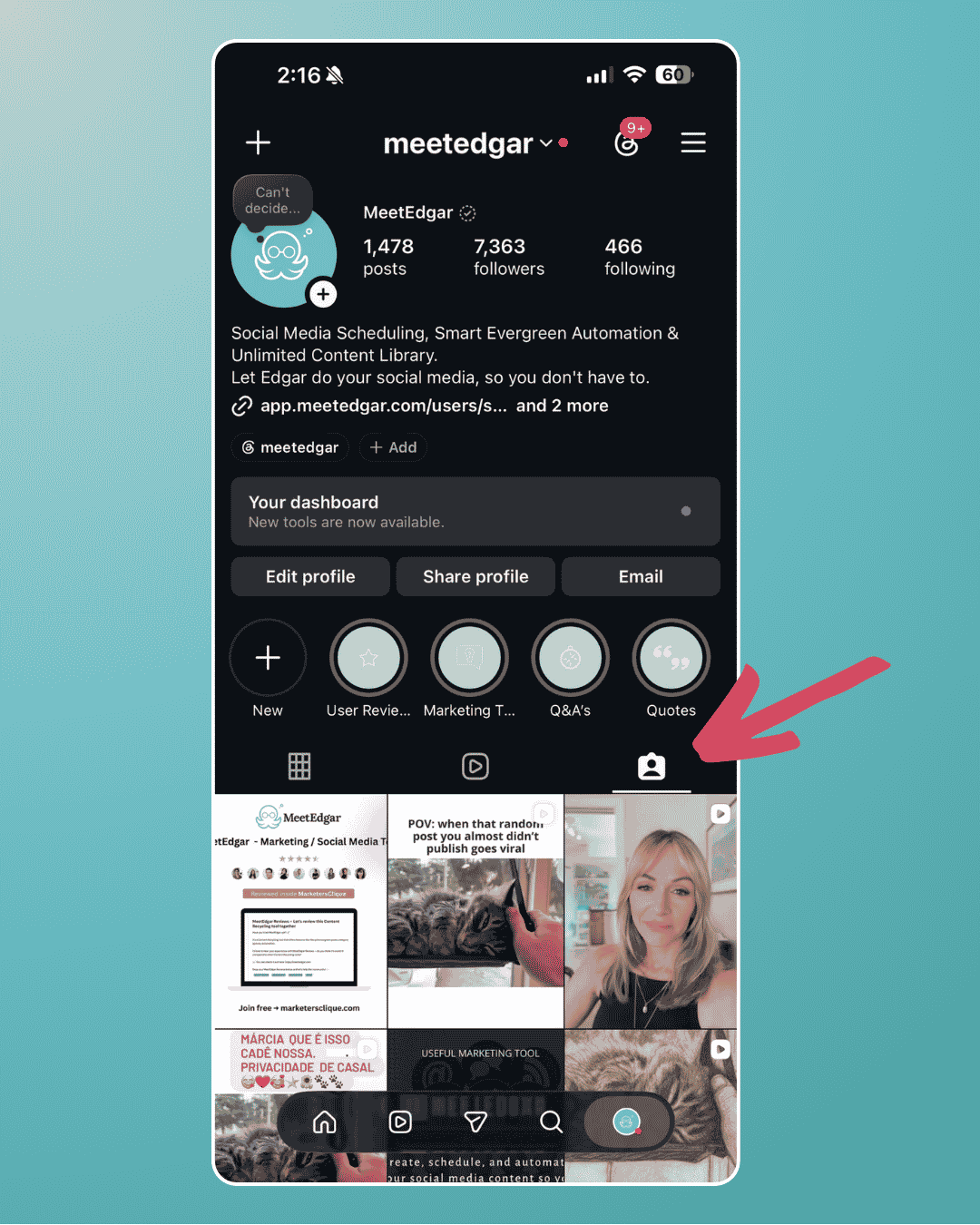
- Scroll to the photo or video you want to show on your grid.
- Press and hold the post until a small menu pops up.
- Tap Add to grid in the menu.
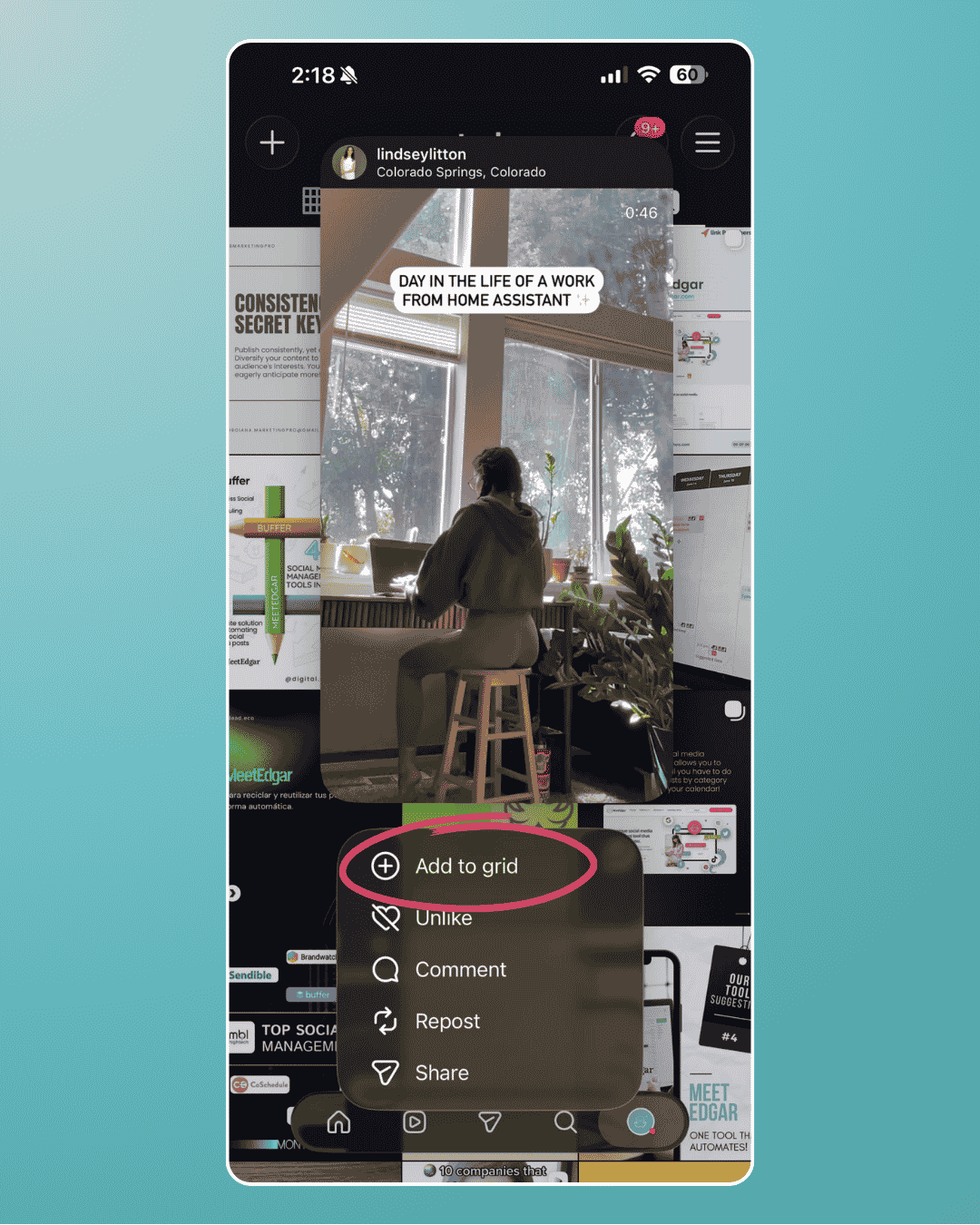
- That's it. The post now shows on your main profile grid. Repeat for any other tagged posts you'd like to add.
Method 2: From the three-dot menu on a post
This works well when you spot a tagged post in your feed or on a friend's profile and want to add it right away.
- Find the post you're tagged in. It could be in your feed, on the other person's profile, or in a post someone shared with you.
- Tap the three dots on the post to open the menu.
- Choose Add to grid.
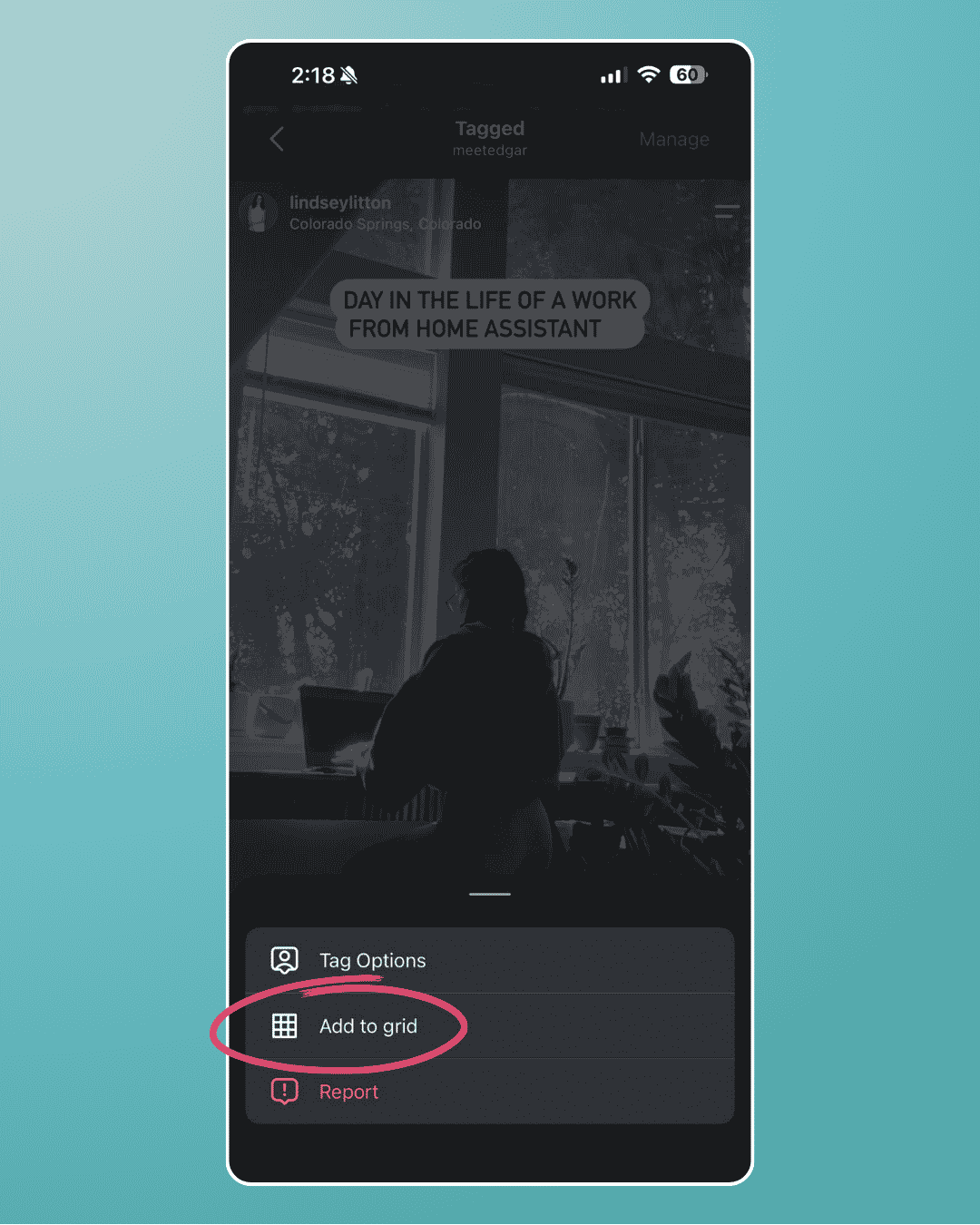
- Done! The post now shows on your main profile grid. You can go back to the tagged tab to repeat with any other posts you'd like to add.
Method 3: From the DM notification
When someone tags you, Instagram sends you a message about it. Adam Mosseri pointed this out in his announcement, and it's the quickest route if you get tagged often.
- Open your Instagram inbox and find the DM notification you received about the tag.
- In the notification message, you will find the “Add to grid” button below the image
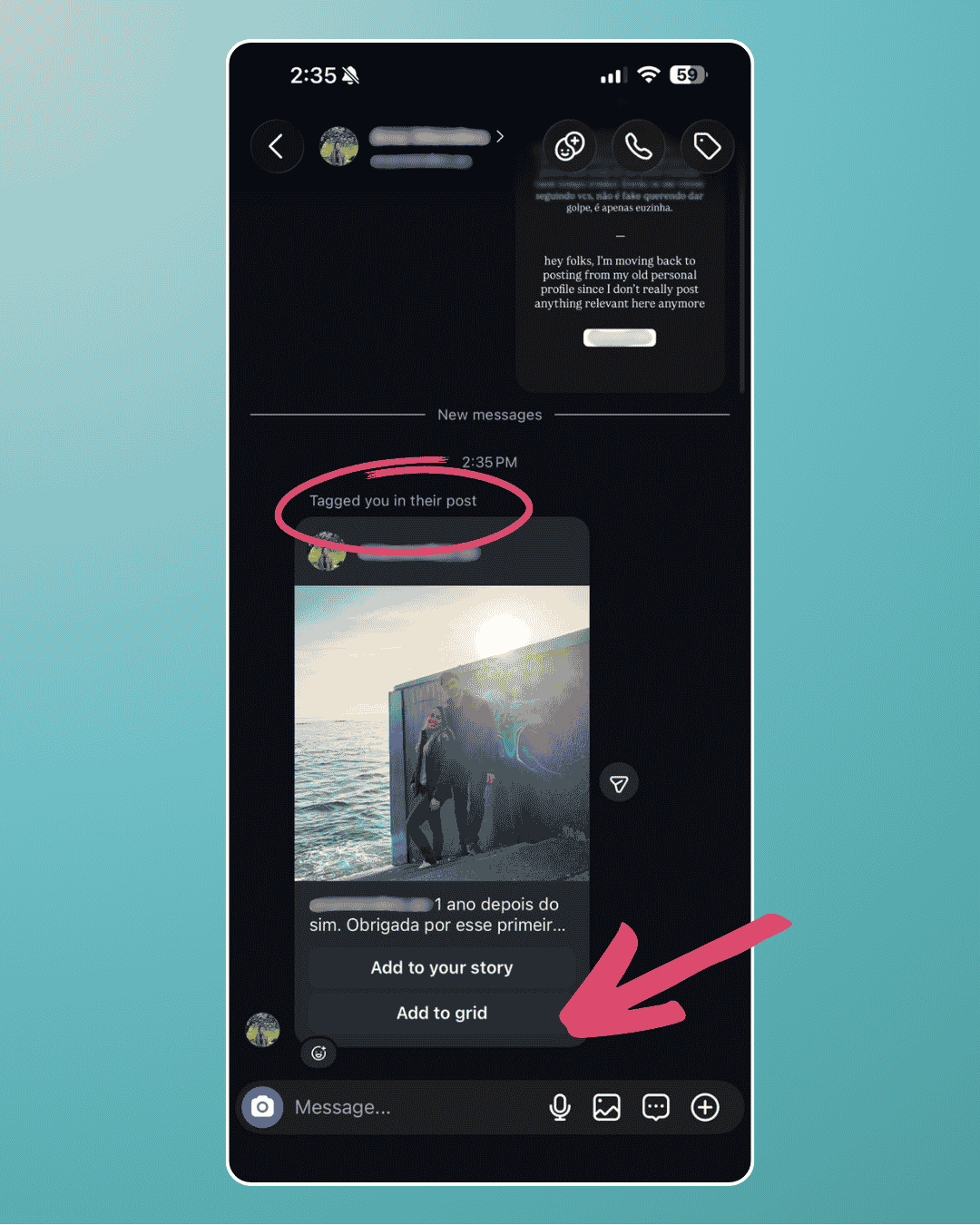
- Tap “Add to grid” to easily add it to your grid.
This is the fastest way to add tagged posts to your grid, since you can add them directly from your DMs. However, this only works for recent tagged posts. For posts you were tagged in before this update, you'll need to use one of the other two methods above.
How to remove a tagged post from your grid
Changed your mind? You can take a post off your grid at any time. Removing it from your grid doesn't delete the original post, and it also stays in your Tagged tab. Open the post from your grid and use the same menu to remove it from your grid.
The exact menu wording can vary a little between app versions, so if you don't see it right away, check the three-dot menu on the post.
Frequently asked questions
Why can't I see the "Add to grid" option?
The feature is rolling out gradually, so it may not have reached your account yet. Update the Instagram app to the latest version and check again in a few days.
Will the post disappear from my Tagged tab?
No. The post stays in your Tagged tab even after you add it to your grid.
Can I remove a tagged post from my grid later?
Yes. You can remove it from your grid at any time. This doesn't delete the original post or take it out of your Tagged tab.
Does this work for videos and Reels?
Yes. Adam Mosseri said you can add any photo or video you're tagged in.
Is "Add to grid" the same as a Collab post?
No. A Collab post is created by two accounts together, while "Add to grid" lets you show a post you were tagged in on your own profile. The original post stays with the account that shared it.
Can I choose where the post appears on my grid?
Yes. New posts are placed by date by default, and you can reorder your grid afterward to move them where you want.
Use tagged posts in your Instagram strategy
"Add to grid" looks like a small update, but it gives you a new way to fill your profile with content you didn't have to create. If you run a business, freelance, or manage a brand, that's worth using on purpose. You can pick customer photos, collabs and shout-outs that fit your brand, and add them to your grid.
Tagged posts are a bonus, so your grid still needs regular posts from you to look active and stay on message.
That last part is where MeetEdgar comes in. You can load your posts, carousels, Reels and Stories into Edgar's content library, set your schedule, and let him publish them for you. That leaves you free to spend your time on the fun stuff, like spotting the best tagged posts to feature.
Ready to try it? Start your 30-day free trial of MeetEdgar and get your Instagram schedule running while you decide which tagged posts to show off.