In this article
First comments are a handy way to keep your social media captions clean while sharing additional information with your audience. It gives you another place to connect with your followers.
But adding comments manually every time you publish isn't exactly convenient, especially when you're scheduling content days or weeks in advance.
The best workaround: schedule a first comment alongside your social media posts, so you don't have to remember to add it later.
In this guide, we'll cover what first comments are, when to use them, and how to schedule them automatically.
What is a first comment?
A first comment is a reply your own post, written by you. Instead of putting everything into your main caption, you can use the first comment to share additional details, hashtags, links, or even a question to encourage conversation.
People use it for a few reasons. Some want a cleaner caption. Others want to start a conversation under the post. Others just need somewhere to put things that don't belong in the caption, like a long link or a list of hashtags.
For example, imagine you're sharing a new blog post on LinkedIn:
Your main post might introduce the topic, share a few helpful takeaways, and get people interested in reading more. Then, in the first comment, you could include: "Want the full breakdown? Here's the complete guide: [link]"
This way, your original post stays focused on the message, while the first comment gives interested readers a clear next step.
When you schedule it, you write that comment at the same time as the post, and it publishes automatically after the post goes live.
Why use a first comment?
First comments aren't just about keeping your captions shorter. They can also help you organize information and make your social media posts more engaging.
1. Keep your captions clean and focused
Sometimes, less is more. Instead of cramming hashtags, links, and extra details into an already lengthy caption, you can move supporting information into the first comment. This keeps your main message easier to read, especially for people quickly scrolling through their feeds.
2. Encourage more conversations
Your first comment can be a great place to ask a follow-up question that invites people to participate. For example, if you're sharing productivity tips, you could comment:
"What's one productivity habit you couldn't live without? 👇"
This gives your followers a natural opportunity to join the conversation.
3. Share links and additional resources
On platforms like LinkedIn and Facebook, first comments can be used to share relevant links without making them the focus of your original post. Maybe you've shared a helpful tip and want to direct readers to a full blog post, downloadable guide, or resource. The first comment provides an additional place to share it.
4. Save time when scheduling content
If you're already planning your social media posts in advance, manually adding the first comment defeats some of the purpose of scheduling.
With an automatic first comment feature, you can create everything at once and let your scheduling tool handle publishing.
What goes in a first comment
The best approach depends on your content and the social media platform you're using.
Here are a few ideas on what you should put in a first comment:
1. Hashtags
Hashtags are one of the most common reasons people use an Instagram first comment.
Moving hashtags out of your caption can make your post look cleaner while keeping them associated with the content.
However, there's an important note: Instagram has previously recommended putting relevant keywords and hashtags in captions for better search discoverability, according to guidance published by Instagram Head Adam Mosseri in 2021. But Instagram's algorithm and search features have evolved significantly since then.
2. Links to resources
Have a new blog post, product page, newsletter, or free resource you want people to check out?
Your first comment can be the perfect spot to share it.
For example:
"Want to learn more? We put together a full guide with everything you need to know: [link]"
This is particularly useful on LinkedIn and Facebook, where people can click links directly from comments.
Tip: Instagram doesn't make URLs in regular post comments clickable. For Instagram, directing people to your link in bio is usually a better option.
3. Questions that encourage engagement
A good social media post shouldn't always be a one-way conversation.
Try using your first comment to ask a question related to your content.
For example:
- "Which of these tips are you going to try first?"
- "Have you experienced this too?"
- "What's your biggest challenge with this?"
- "Did we miss anything? Let us know below!"
The goal is to give people something meaningful to respond to, not simply to collect comments.
4. Additional context or details
Sometimes, your main post doesn't need to include every detail.
Maybe you're announcing an event and want to include registration information, sharing a customer story with an additional resource, or publishing a tutorial that needs a few extra instructions.
You can use the first comment to provide that information without overwhelming your caption. Credits and extra context are also great fit for a first comment.
5. A call to action (CTA)
Your first comment can also help guide readers toward their next step.
For example: "Want more tips like these? Subscribe to our weekly newsletter!"
Keep your CTA relevant to the post, and make sure it provides a natural next step for interested readers.
6. A promo code or disclosure
If you need to add a discount code, contest rules or a short disclosure, a comment can hold it without making the caption longer.
How to schedule a first comment on Instagram, LinkedIn, and Facebook
Most social platforms don’t let you schedule a first comment natively. You can do it with a social media scheduling tool that supports the feature, like MeetEdgar.
With MeetEdgar, you can schedule a first comment on Instagram, LinkedIn and Facebook. Instead of publishing your post and coming back to add the comment by hand, you prepare both pieces of content ahead of time.
When your scheduled post goes live, MeetEdgar automatically publishes your first comment shortly afterward.
How to schedule a first comment in MeetEdgar
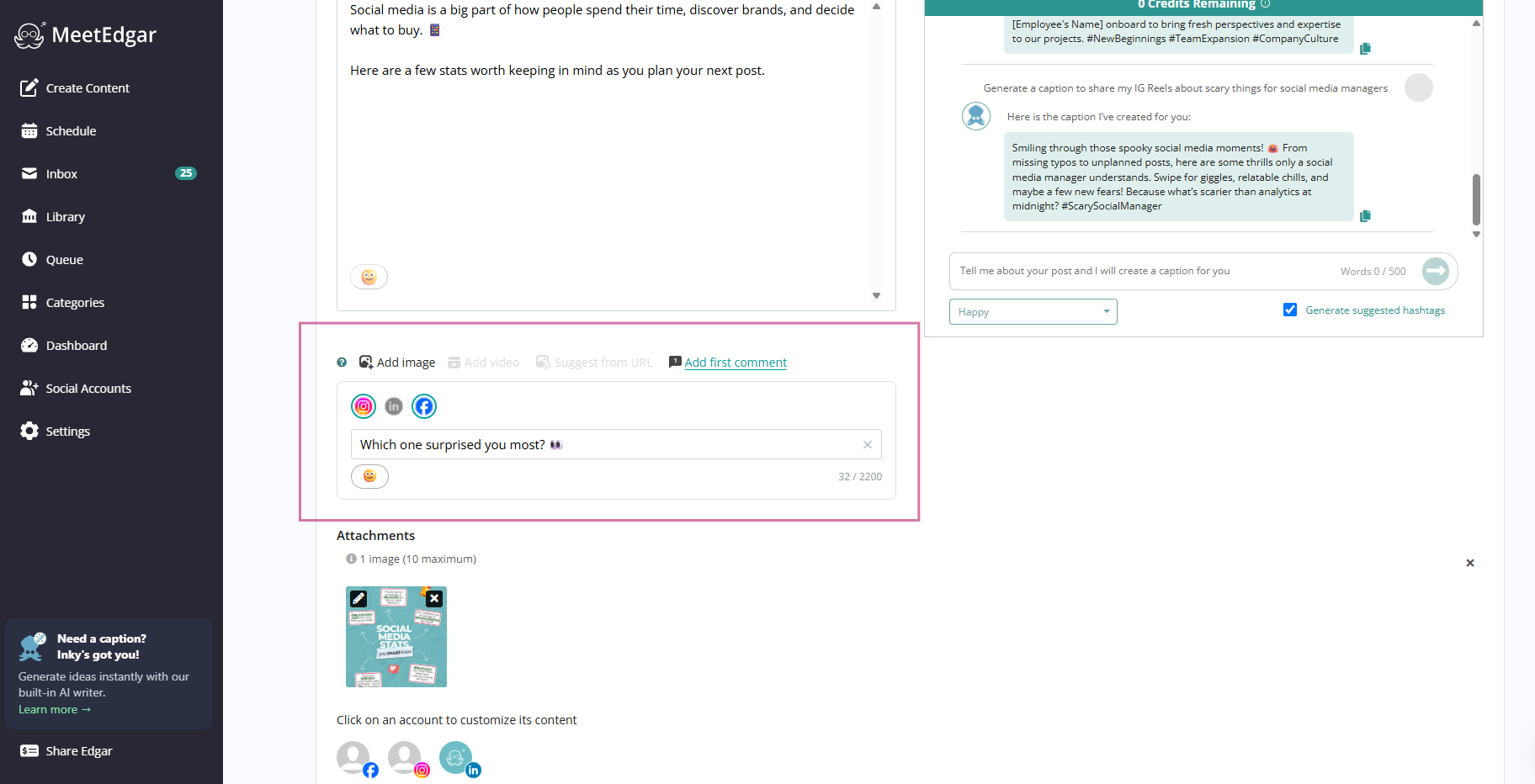
You don't need a special workflow. The first comment is part of the same composer you already use. It's one extra click in the composer, and it uses the same schedule as your post.
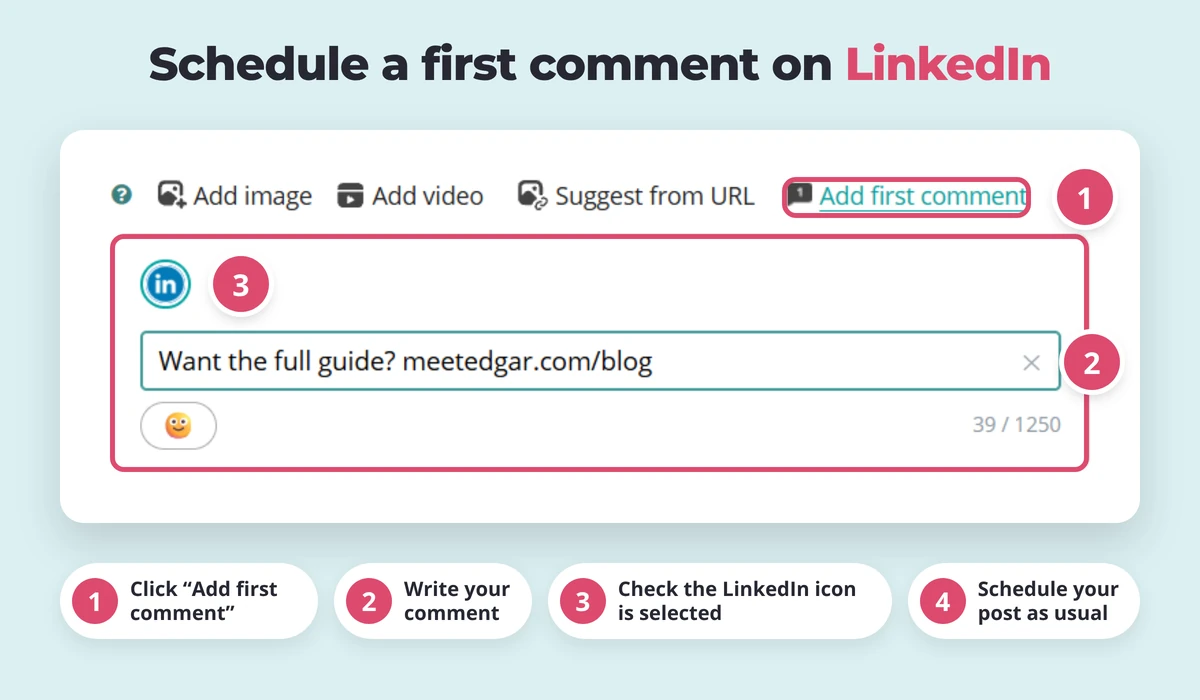
After choosing your social accounts, you can click Add First Comment a comment box opens under your post, where you can write your comment.
Then, you just schedule your post as usual and Edgar publishes the comment after your post goes live.
Here's a breakdown by platform:
Schedule a first comment on Instagram
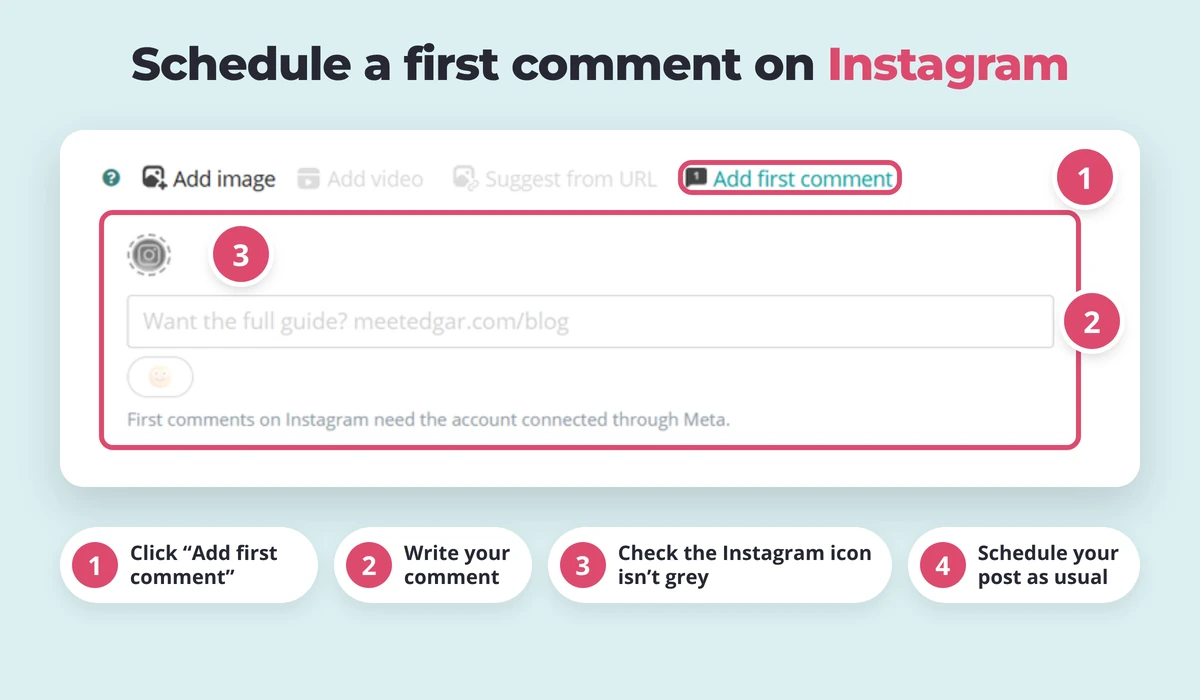
Before you start: Your Instagram account must be connected to MeetEdgar through Meta, via its linked Facebook Page. Accounts connected using direct Instagram login don’t currently support first comments.
- Open the new Content Composer: Click Create Content and select the Instagram account you want to publish to.
- Create your Instagram post: Upload your image, carousel, or Reel, and write your caption.
- Click “Add first comment”: Find Add first comment in the toolbar beneath the caption. Click it to open the comment field.
- Write your comment: Add your hashtags, extra context, or a question for your audience. You can include emojis using the emoji picker.
For Instagram, the limit is 2,200 characters. But we recommend keeping your first comment short and focused so it’s easy to read. - Check that Instagram is enabled: Your supported Instagram account’s icon should be in color. Click it to turn first comments on or off.
An unavailable Instagram account appears grey with a dashed outline. Hover over the icon to identify the account and check the connection requirement. - Schedule your post: Review your post and comment, then choose your publishing time and save using your usual scheduling workflow. MeetEdgar publishes the post first, then adds your comment shortly afterward.
Schedule a first comment on Facebook
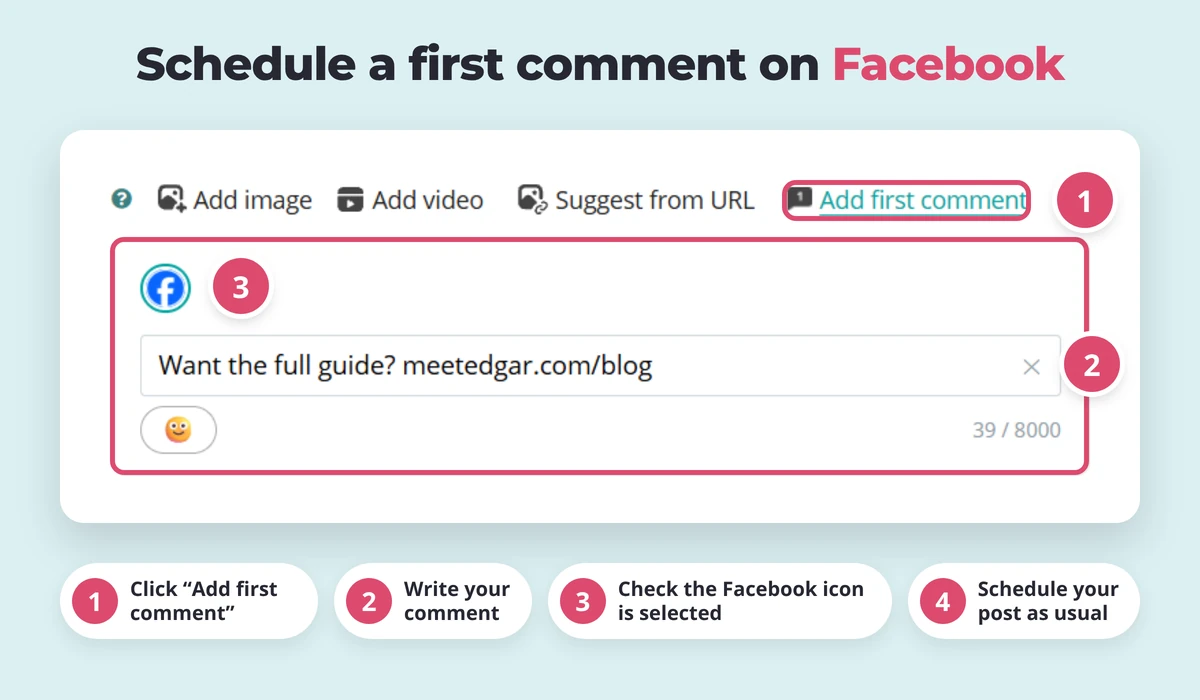
- Open the new Content Composer: Click Create Content and select the Instagram account you want to publish to.
- Create your Facebook post: Write your caption and add any images or video.
- Click “Add first comment”: Find Add first comment in the toolbar beneath the caption. Click it to open the comment field.
- Write your comment: Add your hashtags, extra context, or a question for your audience. You can include emojis using the emoji picker.
For Facebook, the limit is 8,000 characters. However, we recommend keeping your comment short and focused so it’s easy to read. - Check that Facebook is enabled: Facebook icon should be in color. Click it to turn first comments on or off.
If you select multiple Facebook Pages, their first-comment settings switch on or off together, and they share the same comment text. - Schedule your post: Review your post and comment, then choose your publishing time and save using your usual scheduling workflow. MeetEdgar publishes the post first, then adds your comment shortly afterward.
Schedule a first comment on LinkedIn
- Open the new Content Composer: Click Create Content and select the LinkedIn profile or Company Page you want to publish to.
- Create your LinkedIn post: Write your caption and add any images or video.
- Click “Add first comment”: Find Add first comment in the toolbar beneath the caption. Click it to open the comment field.
- Write your comment: Add a link, extra context, or a question for your audience. You can include emojis using the emoji picker.
LinkedIn allows first comments of up to 1,250 characters. However, we recommend keeping your comment short and focused so it’s easy to read. - Check that LinkedIn is enabled: LinkedIn icon should be in color. Click it to turn first comments on or off.
If you select multiple LinkedIn accounts, their first-comment settings switch on or off together, and they share the same comment text. - Schedule your post: Review your post and comment, then choose your publishing time and save using your usual scheduling workflow. MeetEdgar publishes the post first, then adds your comment shortly afterward.
FAQ about first comments
Can you schedule a first comment on Instagram?
Yes! You can schedule an Instagram first comment using a compatible social media scheduling tool. For automatic publishing, you'll typically need an Instagram Business or Creator account and a supported post format.
Can you schedule a first comment on LinkedIn?
Yes. Several social media scheduling tools support automatic first comments for LinkedIn profiles and company pages. You can prepare your main post and comment together, then schedule them to publish without manually adding the comment afterward.
Can you schedule a first comment on Facebook?
Yes. Supported third-party scheduling tools can automatically publish first comments on Facebook Page posts. Availability may vary depending on your account type and whether you're publishing a regular feed post, Reel, or another format.
Are links in Instagram first comments clickable?
No. URLs in regular Instagram comments aren't clickable, so they're not a convenient way to send followers directly to a website. Instead, consider using a link in your Instagram bio and directing followers there from your post or first comment.
Make first comments part of your social media strategy
First comments may seem like a small detail, but they can make your social media workflow a whole lot easier.
Whether you're sharing links, adding context, or starting conversations, first comments give you extra space to connect with your audience without overcrowding your original post.
And the best part? You don't have to add them manually.
With MeetEdgar's First Comment feature, you can plan your posts and comments together, saving time and making sure you don't forget that extra piece of content.
Try MeetEdgar and spend less time managing posts and more time connecting with your audience.