
In this article
If you've always tried to maintain a consistent Instagram grid, this just got a lot easier. For years, Instagram locked your posts in chronological order, newest first, no choice. But now that's changed. Instagram finally solved a problem that's plagued creators and small business owners for years: how to organize your profile grid exactly the way you want it.
In this guide, we'll walk you through exactly how to reorder your Instagram grid and make it look exactly like you envisioned.
Why Your Instagram Grid Order Matters
Your Instagram profile grid is your storefront. When someone visits your account:
- They form an impression of your brand in seconds
- A cohesive, organized grid signals professionalism and consistency
- A random-looking feed suggests the account is neglected, even if your content is great
For business accounts, this visual consistency directly impacts trust and follows. Whether you're a coach, consultant, agency, or small business owner, your profile grid tells a story about the quality of your work and the value of your content.
How to Rearrange Your Instagram Grid: Step-by-Step
Instagram's new grid reordering feature is straightforward and works on both iOS and Android. Here's exactly how to use it.
Step 1: Open your profile and tap the photo you want to move
Tap the profile icon at the bottom right of Instagram. You'll see your profile grid.
Open the post you want to rearrange. This can be any post on your profile, a recent post, an old post, a Reel, a carousel, anything.
.png)
Step 2: Tap the menu (three dots) and select "Reorder Grid"
In the top right of the post, tap the three dots (⋯) to open the options menu. From the menu options, tap "Reorder Grid." A new window will open showing your entire profile grid.
![SCREENSHOT: Instagram "Reorder Grid" option in menu]](https://cdn.prod.website-files.com/6674e535c10c8a900a71a226/6a85e137e69234341fb94037_Instagram%20Reorder%20grid%20tutorial%20.png)
Step 5: Drag and rearrange your posts
In the reorder view, you can now freely drag and rearrange your posts. Tap and hold a photo, then drag it to wherever you want it to appear in your grid. You can:
- Move recent posts to different positions
- Resurface older posts to more prominent spots
- Rearrange your entire grid from top to bottom
.png)
Step 6: Apply your changes
When you're happy with your new grid arrangement, tap the back arrow (←) or chevron in the top-left corner to apply the changes. Your profile will immediately update to show the new order.
.png)
That's it. Your grid is now rearranged, and all the likes, comments, and engagement on each post stay exactly as they were.
5 Strategies for Organizing Your Instagram Grid
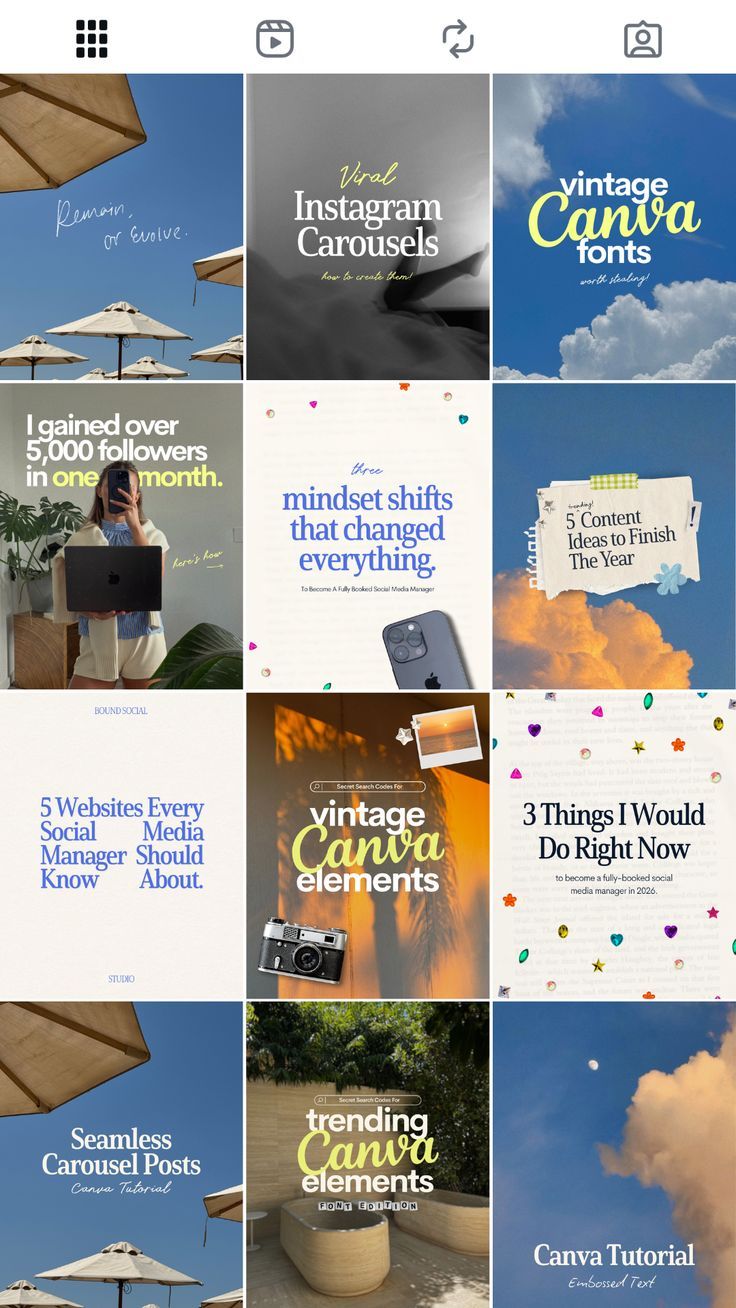
Now that you can rearrange your grid freely, here are ideas to use this feature:
Strategy 1: Color-Blocked Grid
Organize your posts by color palette to create a visually cohesive feed.
How to do it:
- Identify 2-3 primary colors in your brand (e.g., navy, gold, white)
- Rearrange posts so colors alternate or flow across the grid
- Group posts with similar color schemes together
Strategy 2: Content-Type Pattern Grid
Alternate between different content types to create rhythm and variety.
How to do it:
- Group post types: Reels, carousels, static images, videos
- Create a pattern: e.g., Reel → carousel → image → Reel → carousel → image
- Apply consistently across your grid

Strategy 3: Row-by-Row Themes
Organize your grid by topic or campaign, moving through one row at a time.
How to do it:
- Row 1 (top 3 posts): Your best-performing or most important content
- Row 2: Educational content or tips
- Row 3: Behind-the-scenes or personal posts
- Continue the pattern
Strategy 4: Highlight Your Best Performers
Move your highest-engagement posts to the top-left corner where they're most visible. This way, the first 3 posts (top row) are what people see immediately. Considering these positions get the most visual attention, placing your best content here encourages people to scroll and engage more.
How to do it:
- Check your Instagram Insights to see which posts have the most likes, comments, and saves
- Rearrange those top performers into the top-left positions
- Keep refreshing this regularly as new posts perform well
Strategy 5: Strategic Seasonal Rearrangement
Rearrange your grid seasonally to highlight relevant content.
How to do it:
- Before a new season, move seasonal content to prominent positions
- Refresh what's visible at the top of your profile
- Keep engagement fresh without creating new content

FAQs
Q: Can I rearrange my Instagram profile grid?A: Yes! As of mid-2026, Instagram rolled out a native grid reordering feature. You can now tap a post, select "Reorder Grid," and drag posts to any position. All engagement (likes, comments) stays with the post.
Q: Do I lose engagement when I rearrange?A: No. Rearranging only changes the visual position in your grid. All likes, comments, and engagement metrics stay exactly the same.
Q: Can I rearrange posts on my mobile phone?A: Yes. The rearranging feature works on both iOS and Android. Just open a post, tap the three dots, select "Reorder Grid," and drag posts around.