In this article
Introduced in 2017, Instagram carousel posts have become a highly popular content format used by individuals, content creators, and brands alike.
Whether you're selling products, telling a story, or breaking down valuable tips, carousel posts keep your audience engaged, encouraging them to swipe through for more.
But what exactly is a carousel post? Stick around, we’re about to break it all down for you!
What is a Carousel Post on Instagram?
An Instagram carousel post works like a photo album, allowing you to upload up to 20 images and videos in a single post that users can swipe through horizontally.
Think of it as a mini slideshow that lets you tell a story, highlight multiple features of a product, or break down complex ideas into bite-sized pieces. It’s a great Instagram post idea for anyone looking to share more value or showcase different perspectives within a single post.

When creating a carousel, you have full control over how it looks and feels. You can edit each image or video individually (applying filters, adjusting sizes, and arranging them in the perfect order). You can even mix photos and videos within the same post or split a longer video into multiple slides for better engagement.
Carousel posts are ideal for grabbing attention and keeping your audience engaged longer. They’re perfect for:
- Showcasing products from different angles or in various use cases
- Sharing step-by-step tutorials or how-to guides
- Highlighting key details or features of a service or product
- Telling a story that unfolds as users swipe through
Why Instagram Carousels Work
Carousels are one of Instagram’s best-performing formats! Instead of one image and a quick scroll, you get a small story that people move through at their own pace.
And the numbers back it up: Socialinsider analyzed 35 million Instagram posts from 447,613 pages in 2025 and found an average engagement rate of 0.55% for carousels, 0.52% for Reels, and 0.37% for single-image posts.
Part of the reason is that carousels are interactive. Every swipe is a tiny action, and each one keeps someone with your post a little longer. That’s hard to get from a photo that people scroll past in a second. Carousels are also a great way to show information. You can break a big idea into small steps, one per slide, so it’s easy to read on a phone. A checklist, a how-to, a before-and-after or a list of tips all work well, and people tend to save them for later.
Instagram Carousel Post Size Guide
One key aspect of social media planning is ensuring your images and videos are the right size and resolution. High-quality, properly sized visuals can increase engagement and reach. Here are the recommended dimensions for carousel posts:
Instagram Carousel Image Sizes:
- Landscape: 1080 x 566 pixels (Aspect ratio: 1.91:1)
- Portrait: 1080 x 1350 pixels (Aspect ratio: 4:5)
- Square: 1080 x 1080 pixels (Aspect ratio: 1:1)
Instagram Carousel Video Sizes:
- Video length: 3 to 60 seconds per slide (up to a total of 20 minutes, with 20 slides of 60 seconds each)
- Supported formats: .MP4 and .MOV
- Aspect ratios:
- Landscape – 1.91:1
- Square – 1:1
- Portrait – 4:5
- Maximum file size: 4GB
You can also mix videos and images into a single carousel, as well as adding music and individual captions.
Remember: the first slide of the carousel sets the aspect ratio for the rest.
How to Create an Instagram Carousel Post
To create a carousel post on Instagram:
- Open the Instagram app on your smartphone.
- Tap the “+” icon and select “Post.”
- Tap the multi-item selection icon (on the right) to enable carousel mode.
- Select the photos and videos you want to include in your carousel.
- Edit each slide: apply filters, crop, and arrange them in your preferred order.
- Choose whether to save as a draft, schedule for later, or publish immediately.
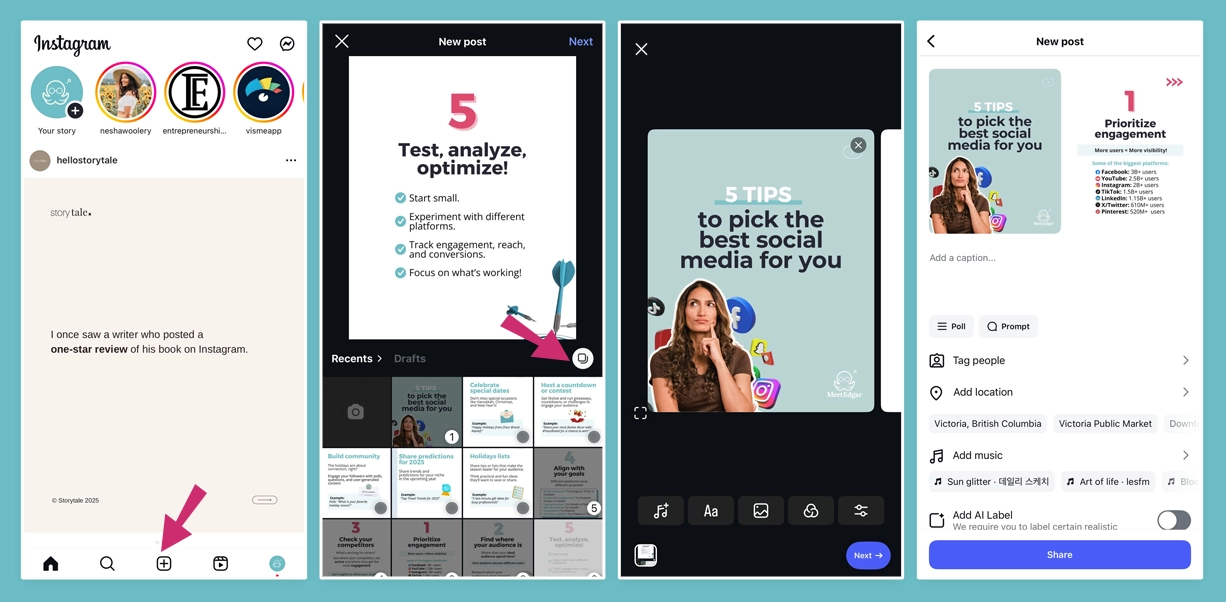
When you select multiple pieces of content for your Instagram post, you will see a number appear on each one. These numbers indicate the order of your images, helping you organize your content effectively.
If you manage Instagram from a desktop using Meta’s Business Suite, you can also create carousel posts by uploading your images and following the same steps.
How to Add Music to an Instagram Carousel
Music plays while people swipe through your carousel, and it can make a photo carousel feel more like a Reel. Here’s how to add it:
- Tap +, choose Post, and select your photos or videos.
- Tap Next and edit your slides.
- On the editing screen, tap Add music (the music note icon).
- Search for a song or browse the trending tab, then tap the one you want.
- Drag the slider to choose which part of the song plays, then tap Done.
- Add your caption and tap Share.
How to Schedule an Instagram Carousel Post
You can schedule Instagram carousel posts directly through the Instagram app or Meta Business Suite on desktop. Additionally, third-party scheduling tools like MeetEdgar allow you to plan and automate your posts in advance.
To schedule a carousel from the Instagram app:
- Tap +, choose Post, and select Select multiple to pick up to 20 photos or videos.
- Edit your slides, add filters if you want, then tap Next.
- Write your caption and add tags, location and music.
- Scroll down and tap Advanced settings, then Schedule this post.
- Pick a date and time, then tap Schedule.
You need a professional account (Business or Creator) to use this, and you can schedule up to 75 days ahead.
Schedule it with an Instagram scheduler
An Instagram scheduler lets you plan carousels from your computer and manage every account in one place. If you post carousels regularly, a tool like MeetEdgar saves you from rebuilding the same plan every week: you can plan and schedule in bulk, reuse your best carousels, cross-post your carousels into other social media platforms, get AI-assistance for captions and more.
Here’s how it works in MeetEdgar, and what you get at each step:
- Pick a category. Put the carousel in a category, like “tips” or “behind the scenes,” and MeetEdgar posts from that category at the time slots you set. Or choose Use Once and set an exact date and time.
- Add your carousel to the content library. Create new content, upload your slides, and write your caption. Build a week or a month of carousels in one sitting instead of posting one at a time.
- Get help with the caption. Use MeetEdgar’s AI assistant to write a caption or create variations of it, so you’re not starting from a blank page.
- Choose where it goes. Select your Instagram account, and add other platforms if you want to share the same carousel on Facebook or LinkedIn. You don’t have to rebuild it for each network.
- Pick a category. Put the carousel in a category, like “tips” or “behind the scenes,” and MeetEdgar posts from that category at the time slots you set. Or choose Use Once and set an exact date and time.
- Save, and let it run. MeetEdgar publishes on schedule. Your best carousels stay in the library, so MeetEdgar can re-share them later and a good tutorial keeps working after its first week.
{{add-custom-cta}}
5 Strategic Tips for Creating Carousel Posts
1. Start with a strong first slide
Your first slide should immediately grab attention with a striking image or video. A compelling visual will encourage users to stop scrolling and engage with your content.
2. Tell a story or share a sequence
Storytelling is your best strategy when crafting Instagram carousels! Use the carousel format to tell a story that unfolds as users swipe, or break down a process into easy-to-follow steps.
3. Keep a cohesive storyline and aesthetic
Ensure that all slides are connected and tell a clear, cohesive story. While variety is important, maintaining a consistent theme or aesthetic across your carousel makes it look more polished and professional. For product-focused carousels, an image background remover like Pixelcut can help keep visuals clean and consistent by isolating products from distracting backgrounds.
4. Encourage interaction and engagement
Ensure your carousel posts include interactive elements such as questions, polls, or a clear call to action (CTA) on the final slide to encourage your audience to comment and engage with your content.
5. Experiment and analyze what works best
Try different types of content, styles, and formats to see what resonates most with your audience. Use Instagram insights to analyze engagement metrics and refine your approach for even better-performing carousel posts in the future.
Instagram Carousel FAQ
Can I add music to a carousel?
Yes. Tap Add music on the editing screen before you share the post, pick a song, and choose which part plays. Business accounts may see fewer songs than Creator accounts because of licensing.
How many photos and videos can I share in a carousel?
Up to 20 photos, videos, or a mix of both. For most posts, 7 to 10 slides works well, because attention tends to drop after about slide 8.
Can I tag people on specific slides?
Yes. Tags are added slide by slide, so you can tag different people on different photos. Open the slide, tap Tag people, and tap the spot on the image.
Can I mix photos and videos in one carousel?
Yes. Photos and videos count toward the same 20-slide limit, and you can place them in any order.
Can I edit a carousel after posting?
You can edit the caption, tags and location at any time. Changing the slides is more limited, so check each slide before you publish. You may be able to delete a single slide after posting.
When is the best time to post a carousel?
It depends on when your followers are online. Start with our best time to post on Instagram guide, then check your Instagram Insights.