In this article
Your Instagram Reels cover might seem like a small detail, but it can also plays a big role in whether someone taps your video or keeps scrolling.
It works as your audience's first impression. Before anyone watches your Reel, they see your cover. And in many cases, that split-second decision determines your reach, engagement, and growth.
In this guide, we'll walk you through everything you need to know about Instagram Reels covers, from sizing and design to uploading, editing, and optimizing for better performance.
The Basics of Instagram Reels Cover
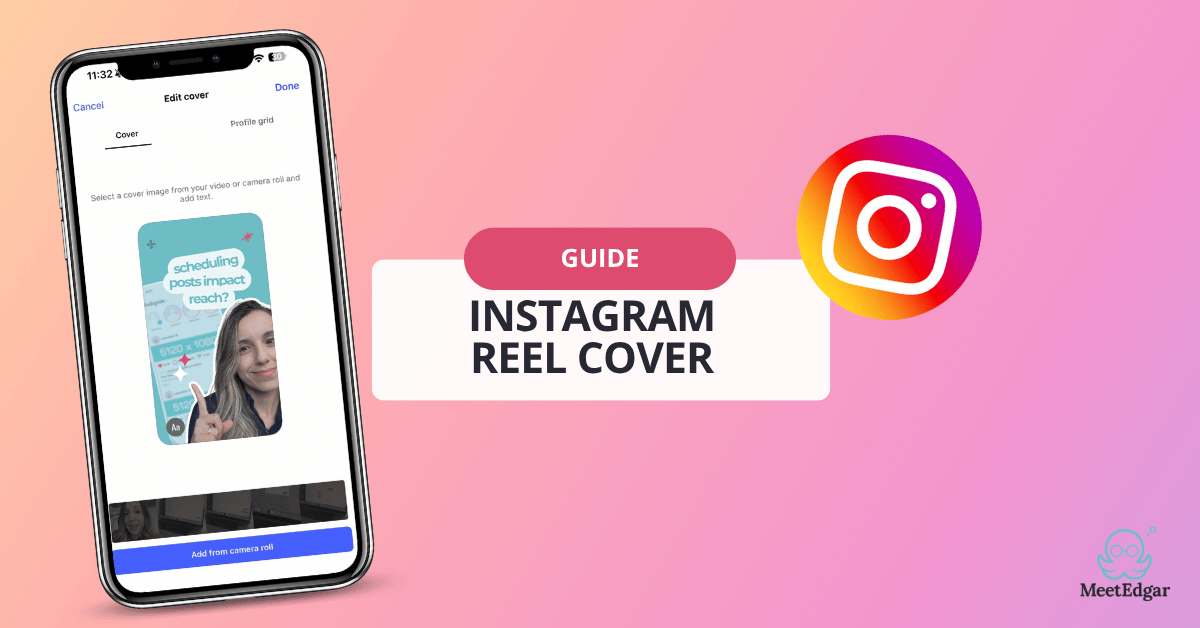
An Instagram Reels cover, also known as a thumbnail, is the static image that represents your video in the Reels tab, the main feed, and your profile grid. It works a lot like a YouTube thumbnail: it's what people see before they decide whether to watch.
Instagram gives you two options:
a) pick a still frame directly from your video, or
b) upload a custom image you've designed yourself.
Most creators go with the custom route, and for good reason. The primary purpose of a cover photo is to provide context. It tells the viewer exactly what to expect from the video before it even starts playing.
A thoughtfully designed cover makes your profile look polished, builds brand recognition, and gives viewers an immediate sense of what your content is about. This is particularly important where a clear title on the cover can significantly increase the click-through rate.
How to Create a Custom Cover
Creating a custom cover allows you to maintain a consistent aesthetic across your entire profile.
To get started, you should use a design tool like Canva, Adobe Express, or Figma.
Next, make sure you’re using the correct size for Instagram. The standard image size for an Instagram Reels cover is 1080 x 1920 pixels.
Instagram Reels cover image size
- Recommended: 1080 x 1920 px (9:16 ratio)
- Minimum: 420 x 654 px
- Format: JPG or PNG
Safe zone for grid preview
One important thing to keep in mind: while your cover displays in full vertical format (1080 x 1920) in the Reels tab, Instagram crops this image to a 4:5 ratio (1080 x 1440) when it appears on your profile grid.
To ensure your text and key visual elements aren't cut off, always place them in the center of the canvas. Try to keep your text and main elements positioned for a 1440×1080 display.
Pro tip: Save a Canva template with your brand colors, fonts, and logo locked in. For every new Reel, just swap the title text and export. You'll cut design time to under two minutes.
Free templates to get you started
To make things easier, we created a free Instagram Reels cover templates pack you can use to get started faster.
Just click the banner image below to access the templates pack and start customizing your covers right away.
.png)
How to Add Custom Reel Covers
Once your cover image is ready, adding it when you post a Reel is straightforward. After you finished editing your Reel in the Instagram app and reached the "Share" screen, follow these steps:
- Tap the "Edit Cover" button on the video preview.
- Select "Add from Camera Roll" (on iOS) or "Add from Gallery" (on Android).
- Choose your pre-designed 1080 x 1920 image.
- Tap "Profile Grid" to adjust how the image will be cropped on your main profile page.
- Tap Done, finish your caption, and you're ready to post.

Now your Reels will be published with your custom cover and that's the first image users will see on your profile grid.
This is quick and simple if you’re posting in real time. But if you’re planning content in advance, there’s an even easier way to keep your Reels looking polished and consistent.
Scheduling Reels with Cover
If you prefer to plan content ahead of time, you can also add a custom cover when scheduling your Reel instead of doing it manually at the moment of posting.
Instagram’s native scheduling options may support this depending on how you’re publishing, and some third-party scheduling tools support it too.
MeetEdgar now offers the feature to schedule Instagram Reels with custom covers! This allows you to batch-create your content and maintain a consistent posting schedule without being tied to your phone.
How to do it in MeetEdgar: When creating a new post, select Instagram Reels as the content type, upload your video, then upload your custom cover image in the Reel Cover field. Set your schedule and let MeetEdgar handle the rest — your Reel will publish at peak times with your branded cover already attached.
This can make the process way easier if you like to batch your content in advance: design a week's worth of covers at once, write all your captions, schedule everything in MeetEdgar, and you're done. It also helps keep your profile looking consistent, since you can prepare your covers, captions, and publishing schedule all at once.
How to Change Your Reels Cover After Posting
One of the most common questions creators ask is whether they can fix a cover after the video is already live. The answer is yes! Instagram allows you to update your Reels thumbnail at any time, which is perfect if you notice a typo or want to refresh your grid's look without affecting your views, likes, or comments.
To change your cover after posting:
- Navigate to the Reel you wish to edit.
- Tap the three dots (...) in the top right or bottom right corner.
- Select "Manage" and then "Edit" from the menu.
- 4.Tap the "Cover" button on the video preview.
- Choose a different frame from the video or upload a new image from your device.
- 6.Tap "Done" to save your changes.

Your updated cover will appear immediately across your profile grid and the Reels tab.
5 Best Tips for Creating Instagram Reels Covers
Use these principles to turn your covers from forgettable to scroll-stopping.
01) Screenshot your best moment first
A simple way to start is by choosing the strongest frame from your Reel and using it as your base image. Look for a moment that feels expressive, visually clear, or instantly understandable.
That could be a close-up of you speaking, a product shot, a transformation moment, or the most eye-catching frame in the video. Once you have that base image, you can build a consistent layout around it.
2. Design for the grid crop
Your cover might look great in full 9:16 format, but that is not how most people will first see it. On your profile grid, Instagram crops Reel covers more tightly, so text and key visuals near the edges can easily get cut off.
To avoid awkward cropping, keep your text, face, logo, and other important elements centered. Leave breathing room around the edges, especially at the top and bottom. When designing, always think about how the cover will appear on your profile first, not just in the Reel feed.
3. Put a clear hook on your cover
Text can make a big difference in whether someone taps or scrolls past. A short, specific hook tells people what they will get from the Reel before they even press play, which can help increase click-through rate.
The best cover text is usually brief and benefit-focused. Instead of something vague, use language that promises a useful takeaway, a strong opinion, or a quick result. The goal is not to say everything but to give viewers a compelling reason to watch.
4. Stay on-brand
Using your brand colors, fonts, and a consistent design style helps your profile look more polished and recognizable. Over time, this also optmizes the creation process.
One of the easiest ways to do this is by using templates. A reusable template keeps your covers aligned even when the content changes from post to post. You can still swap images, update the hook, and adjust the layout slightly, but the overall look stays cohesive.
5. Prioritize contrast and simplicity
Reels covers are small, and they are competing with dozens of other images on a tiny phone screen. Too many elements = confusion.
Simple covers tend to perform better because they are easier to understand in a split second. Use strong contrast between the background and text, keep your wording short, and avoid clutter. If someone can instantly tell what your Reel is about, your cover is doing its job.