In this article
Since its global launch in 2021, YouTube Shorts has exploded into one of the most powerful short-form video platforms on the internet, now averaging a staggering 200 billion daily views.
If you're looking to add YouTube Shorts to your marketing strategy but aren't sure where to begin, you've come to the right place. Getting started is simpler than you might think, and you don't need expensive equipment or editing experience to start creating Shorts.
In this guide, we'll walk you through exactly how to make and upload YouTube Shorts on both your smartphone and a PC, along with the key guidelines you need to follow to do it right.
What Are YouTube Shorts?
YouTube Shorts are vertical, short-form videos designed to be watched on mobile devices. They live in a dedicated "Shorts" feed on the YouTube app and are algorithmically surfaced to users, giving even brand-new channels a real shot at viral reach.
Think of them as YouTube's answer to TikTok and Instagram Reels: quick, punchy, scroll-stopping content that captures attention in seconds.
How Long Can a YouTube Short Be?
Before you start filming, it's important to know the length rules.
A YouTube Short can be up to 3 minutes (180 seconds) long, giving creators significantly more flexibility while still staying within the short-form format. Since 2024, the platform extended the original 60 seconds limit to 3 minutes.
Here's a quick breakdown of YouTube Short length guidelines:
YouTube Shorts Guidelines
- Minimum length: No official minimum, but videos under 5 seconds rarely perform well
- Lenght limit: 3 minutes (180 seconds)
- Aspect ratio: Vertical (9:16), ideally filmed at 1080 x 1920 pixels
- Format: MP4 or MOV recommended
For best performance, most top creators still aim for 15–60 seconds - short enough to hold full attention, long enough to deliver real value or entertainment. If your content genuinely needs 2–3 minutes, use it. If it doesn't, keep it tight.
How to Create a YouTube Short on a Smartphone (YouTube App)
The easiest way to create a YouTube Short is directly inside the YouTube app. This method gives you access to YouTube's built-in camera, editor, and audio tools — all in one place.
What You'll Need
- A smartphone (iOS or Android)
- The YouTube app (free - download from the App Store or Google Play)
- A YouTube account (Google account)
Step 1: Open the YouTube App
Launch the YouTube app on your phone. Make sure you're signed in to your Google/YouTube account.
Step 2: Tap the "+" Create Button
At the bottom center of the screen, tap the "+" (plus) icon. A menu will appear with several options. Select "Create a Short" to open the Shorts camera.

Step 3: Upload or Record Your Short
To create your Shorts, you have two options:
a) Upload a video by choosing the option "video" in the bottom menu
This let you choose an existing video in your phone library and edit it to upload.
b) Recording a new video by choosing the option "Short" in the bottom menu
In the Short mode, you can:
- Tap and hold the red record button to record in clips. Release to pause and tap again to add another clip.
- Tap once to start a hands-free continuous recording session.
- Upload existing footage by tapping the photo gallery icon at the bottom left to import a pre-recorded video.
Once you've finished recording, tap the checkmark to move to the editing screen.
.png)
Step 4: Edit Your Short
Once you have uploaded your video or are done recording, you can use the YouTube Shorts editor with built-in tools:
- Text — Add captions, titles, or callouts at specific timestamps.
- Audio — Tap "Add Sound" to browse YouTube's music library and overlay a trending track. You can also use your original audio.
- Filters — Apply color filters to set the mood of your video.
- Stickers - Add interactive stickers like Q&A.
- Captions — Add auto-generated captions
- Voice-over — Record narration over your video from within the editor.
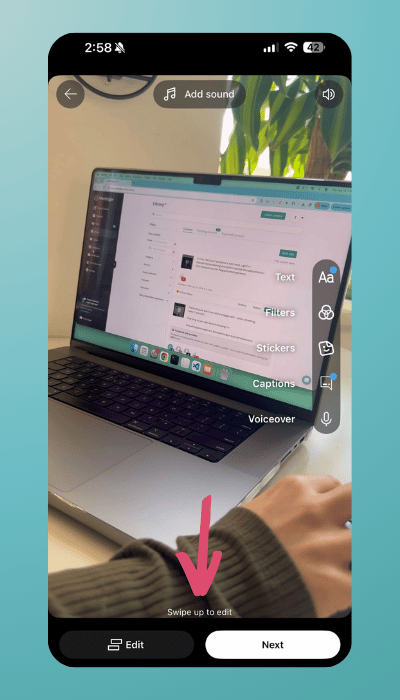
Step 6: Add Details and Upload Your Short
Tap "Next" when you're happy with your edits. You'll reach the Details screen, where you should:
- Write a title — Keep it concise and compelling (up to 100 characters). Include relevant keywords naturally.
- Add a description — Briefly describe what the Short is about. Include hashtags like
#Shortsto help YouTube categorize it. - Choose your audience — Indicate whether the content is made for kids or not.
- Set visibility — Choose Public, Unlisted, or Private.
- Schedule (optional) — You can schedule the Short to go live at a specific date and time.
.png)
When everything looks good, tap "Upload Short".
Wait the uploading and... your video is now live!
How to Create a YouTube Short on a PC (YouTube Website)
You can also create and upload YouTube Shorts from a desktop computer using the YouTube website. This is ideal if you've recorded footage on a camera, edited it in software like DaVinci Resolve, CapCut, or Adobe Premiere, and want to upload the final file directly.
What You'll Need
- A computer (Windows, Mac, or Linux)
- A web browser (Chrome, Firefox, Edge, etc.)
- A YouTube account
- A pre-edited vertical video file (MP4 format recommended, 9:16 aspect ratio)
Note: The YouTube website does not have a built-in camera/recorder like the mobile app, so you'll need to have your video file ready before uploading.
Step 1: Go to YouTube.com and Sign In
Open your browser, navigate to youtube.com, and click Sign In in the top right corner. Enter your Google account credentials.
Step 2: Click the Upload Button
In the top right corner of the YouTube homepage, click the video camera icon with a "+" (Create button). A dropdown menu will appear. Select "Upload video".
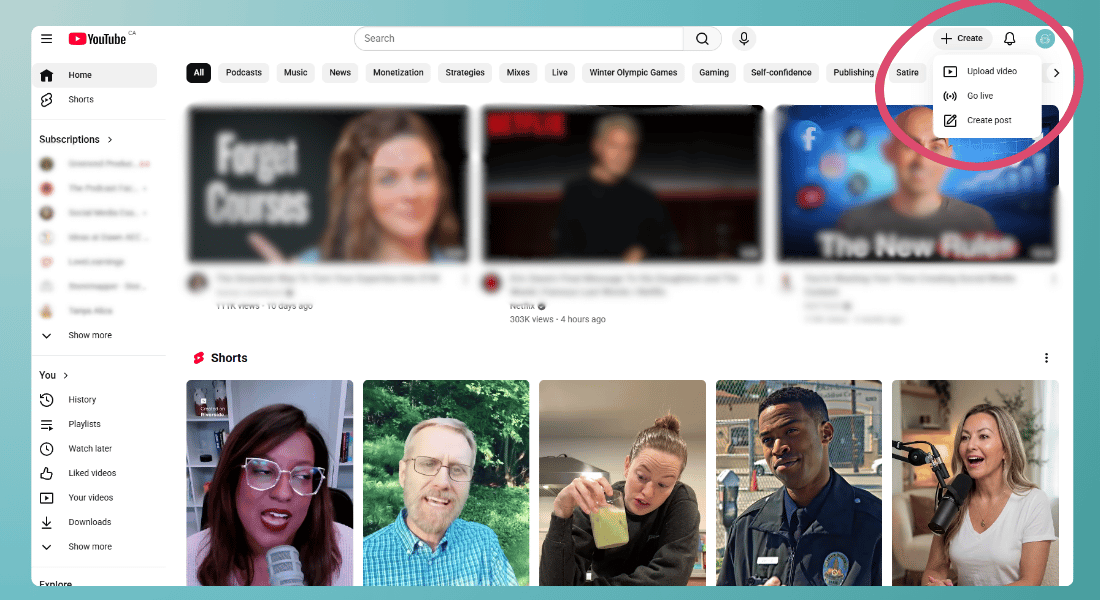
Step 3: Select Your Video File
A file upload window will appear. Either:
- Drag and drop your video file into the upload area, or
- Click "Select Files" to browse your computer and choose your video.
YouTube will automatically detect that your video is a Short if it meets the following criteria:
- The aspect ratio is 9:16 (vertical)
- The duration is 3 minutes or less
If your video meets both requirements, YouTube will label it as a Short during the upload process.

Step 4: Fill In the Video Details
While your video uploads, complete the details form:
- Title — Write a keyword-rich, attention-grabbing title (e.g., "How to Make the Perfect Espresso in 60 Seconds"). Keep it under 100 characters.
- Description — Briefly describe your Short. Add
#Shortsin the description or title to ensure YouTube categorizes it correctly. - Thumbnail — YouTube will auto-generate thumbnails, but for Shorts, the thumbnail matters less than for long-form videos since they autoplay in the feed.
- Audience — Select whether this content is made for kids.
- Age restriction (if applicable).
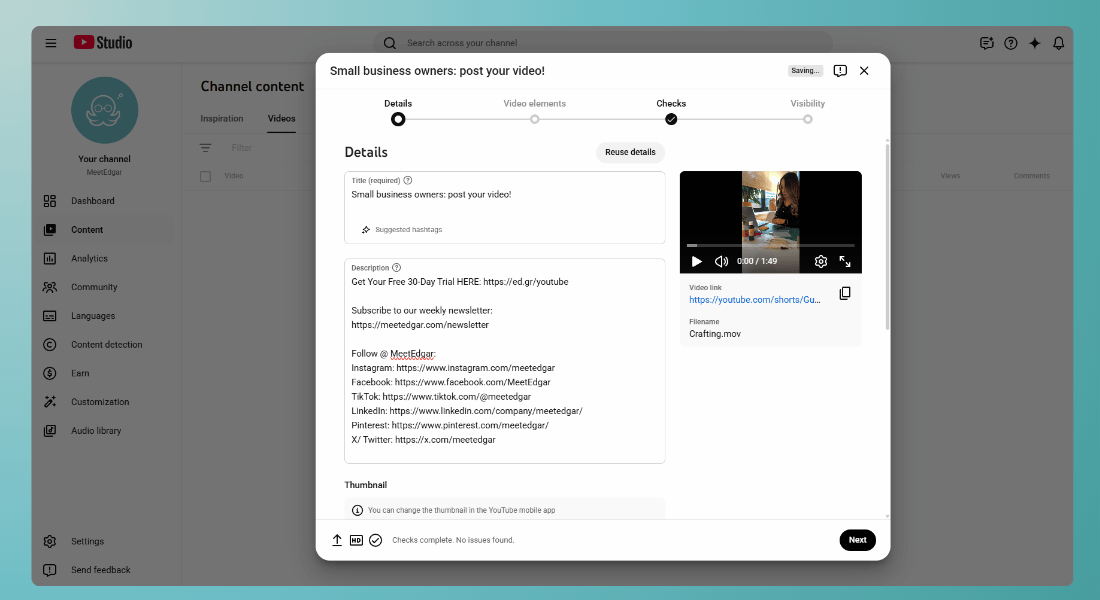
Step 5: Choose Visibility and Publish
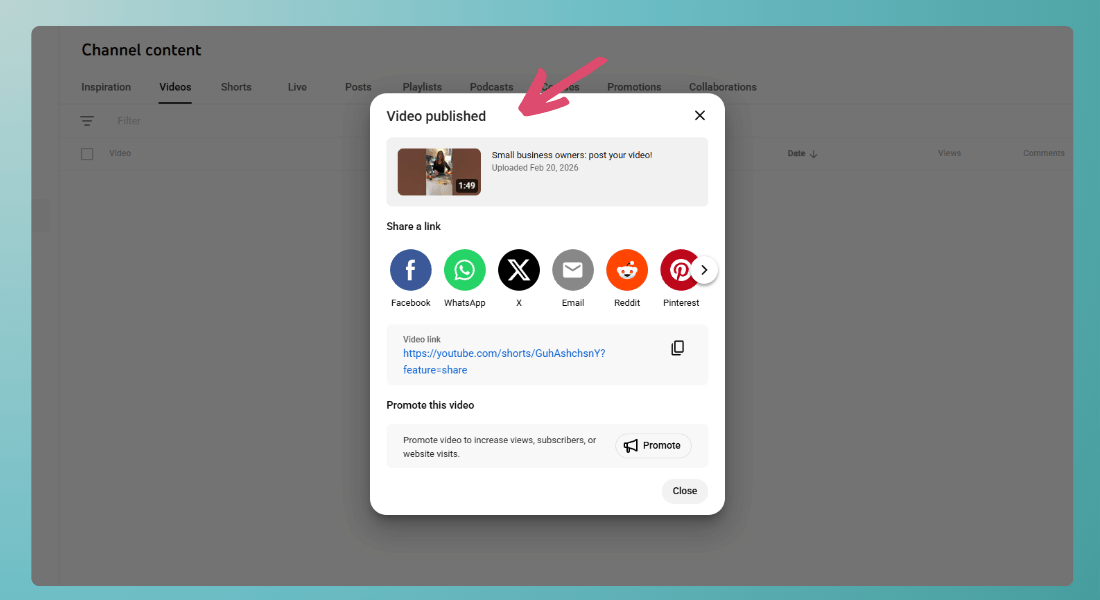
Click "Next" through the Video Elements and Checks screens (you can skip adding end screens or cards for Shorts). On the Visibility screen:
- Choose Public to make it available immediately.
- Choose Schedule to set a future publish date and time for better timing strategy.
Click "Publish" or "Schedule" — your Short is now uploaded and live on YouTube!
Tips for creating YouTube Shorts
Hook viewers in the first 1–2 seconds.
The Shorts feed is a swipe-driven environment. If your opening frame isn't captivating, viewers will scroll past. Start with action, a bold statement, or a compelling visual.
Always use vertical video (9:16).
Horizontal or square videos won't appear in the dedicated Shorts feed and will miss a massive chunk of potential viewers.
Keep captions on.
A large percentage of viewers watch with the sound off. Built-in captions improve accessibility and retention.
Your title matters.
This signals to YouTube's algorithm what your video is about and how it should be distributed through the Shorts feed. Use relevant keywords!
Keep it short.
As the name says, YouTube Shorts are supposed to be brief videos. The maximum lengh is 3 minutes but try to keep it under 60 seconds when possible.
FAQ
Do YouTube Shorts count toward channel monetization?
Yes. Shorts are monetized through the YouTube Partner Program via the Shorts ad revenue sharing model. However, the revenue per view is typically lower than long-form content.
Can I upload a YouTube Short from TikTok or Instagram Reels?
You can upload the same video content, but YouTube's algorithm may deprioritize videos with visible TikTok watermarks. It's best to export your video without watermarks for YouTube. Or to use a social media management tool like MeetEdgar to upload the same video to all platforms at once.
Does a YouTube Short have to be filmed vertically?
Technically no, you can upload any video under 3 minutes. But only vertical (9:16) videos are shown in the dedicated Shorts feed. Horizontal videos uploaded as Shorts will likely appear as regular videos.
Can I edit a YouTube Short after uploading?
You can edit the title, description, thumbnail, and visibility settings after uploading via YouTube Studio. However, you cannot replace the video file itself without deleting and re-uploading.